De-centralized privacy tools and more — free for personal use
The most common email header fields and values, and what they actually mean.
What Comprises an email Message?
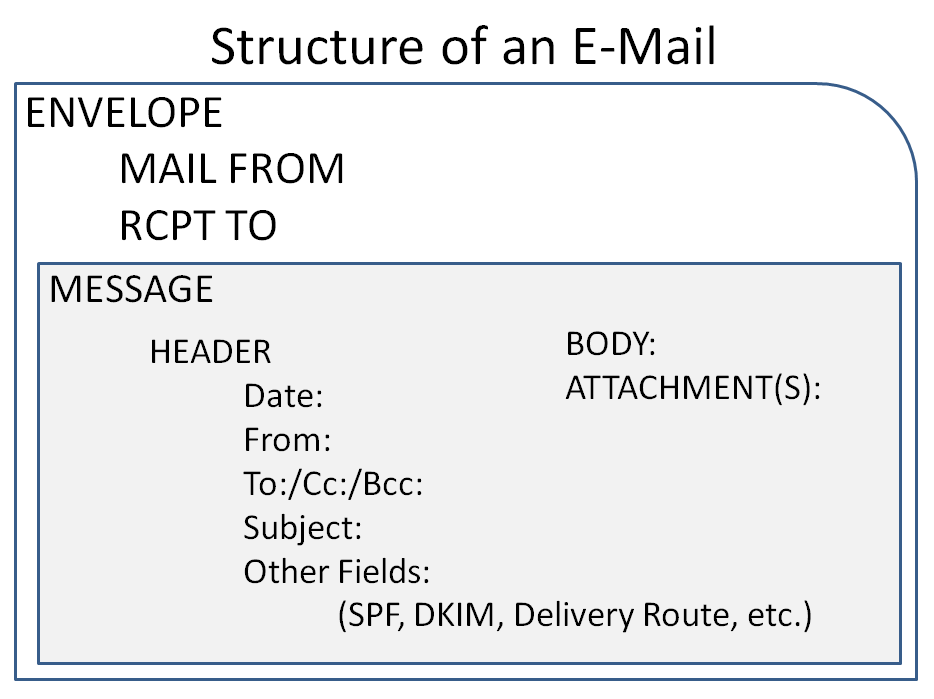
An email is made up of an Envelope and a Message. A Message, in turn, is composed of a Header, Body, and Attachments. The specification for an Envelope is controlled by the RFC 5321, while an Internet Message (the email message sent with the envelope) is expected to adhere to the RFC 5322 in format (updated by RFC6854).
SPF Quick Codes The SPF (Sender Policy Framework) is a mechanism to determine whether the sending mail server is authorized to send email for a given domain. Determination is made by the receiving mail server by looking up the TXT (SPF) record for a given domain in the DNS (Domain Name System). The domain to look up is driven by the RFC 5321 "MAIL FROM" identity provided in message Envelope or by the HELO/EHLO identity per RFC 5598 (or both). The SPF standard is specified by RFC7208.
Common values:
When the email header shows that the SPF check failed (or 'soft failed'), it is a good indicator that the email is spoofed. There is an exception, however, which is when the domain owner misconfigured its DNS or forgot to update the TXT (SPF) record after switching an email provider.
Look up the TXT (SPF) record yourself. 
When Is a Passing SPF Check Not Enough of an Assurance About Message Origin?
Scenario 1. The email shows, on a closer examination, that it is from a look-alike domain (e.g. arnazon.com or rumbles.com). In that case, a passing SPF check simply indicates that the email really did originate from a mail server authorized by the look-alike domain.
Scenario 2. A malicious email is being sent from a shared mail server or from an IP range shared by both the domain owner and the bad actor. This can be accomplished by a bad actor picking an email hosting provider to match the mail provider of the domain that is being spoofed.
Say, a hacker would like to impersonate emails from "owner@flower-store.com", which uses RackSpace.com for web site hosting and email. The owner of "flower-store.com" configures an SPF record to designate RackSpace.com IP range as valid for sending emails.
The bad actor then purchases a hosting/email plan from RackSpace.com and configures his own mail server (or uses the included mail service) residing at the same IP range if possible. The emails from such a mail server may be able to pass the SPF check as a result.
If SPF alone is not enough, what else can be done to authenticate a message? This is where message signing or DKIM may help.
DKIM Quick Codes
DKIM (Domain Keys Identified Mail) is a message signing mechanism that allows to verify a) whether the email is truly sent from the stated domain and the associated email sending infrastructure; and b) whether message contents have been altered along the way. The DKIM standard is specified by RFC6376, with verification codes described in RFC8601.
Common values:
Some email servers may provide additional information on the type of a DKIM error if one is listed. If the status is "PERMFAIL", the verification operation failed and should not be reconsidered by the receiving mail server. If the status is "TEMPFAIL", the signature could not be verified, e.g. due to a temporary network condition, but may be postponed and re-tried again later.
The DKIM authentication result, which is checked upon message's arrival and stored in the email's header, is a great indicator whether the email is spoofed. The domain owner publishes his or her public key in the DNS. When sending an email from an authenticated mail user, the domain's mail server hashes key fields of an email and encrypts the hash with the private signing key. The recipient's mail server looks up the public key of the domain that the message claims to be from and attempts to decrypt the signature attached to the message. If it decrypts successfully, it means that indeed, the domain owner or someone in possession of his or her private signing key, attached a valid signature to the message.
Further, after re-computing the hash value (a digital fingerprint) of the key fields such as the "From", Subject", "Body", etc., the receiving email server will compare the hash with the decrypted hash in the signature. If the hashes match, it would indicate that the message is unaltered as well.
The DKIM authentication result will properly show the result of "fail", if configured by the domain owner, when someone NOT in possession of the domain's private signing key tries to impersonate a domain's user, e.g. by authoring a spoofed email purporting to originate from the domain. The attacker would have no way of properly signing the message without the private key, which is kept secret. This is why to avoid being impersonated, the domain owner or IT administrator is well advised to set up, properly configure, and test all DKIM, SPF (and DMARC) security mechanisms for the sending domain for the benefit of all those who may receive emails from it (or emails that purport to be from the domain) and to be able to "spot the spoof".
In turn, it is possible of course, that the administrator of the sending domain did not configure DKIM properly. In that case, a failing DKIM authentication result in the message header would be an example of a false positive in terms of an authentication alert for a valid message caused by suboptimal or incorrect configuration or a lack of testing.
When Is a Passing DKIM Check Not Enough of an Assurance About Message Origin?
Scenario 1. Lookalike domains are treacherous since if an email recipient buys the look-alike bait, everything that follows is a lie. Indeed, a threat actor may register a look-alike domain "bankofamericai.com" or "us-bank.us", and outfit it with a DKIM public key, which the recipients can then use to verify email signatures attached to the attacker's emails. In this case, a passing DKIM check would simply indicate that the email really did originate from the owner of the look-alike domain.
Scenario 2. A passing DKIM check would normally indicate that the sending mail server accepted the request to send and sign the message, thus viewing the sender as an authorized user of the email sending infrastructure. Clearly there can be a malicious user impersonating a legitimate user at the source mail system through a stolen password, an intercepted web page authentication cookie, an active web session from which the legitimate user walked away, to name a few examples. This is where the source domain's IT administrator is well served by requiring multi-factor authentication (usually a text code to phone or email), regularly checking their users' machines for viruses and keyloggers, installing security updates, performing user training, and doing a variety of best-practice security measures in general to compensate for these risks.
It should be added that the private signing key used in DKIM should be protected when stored, and that the sending mail infrastructure should be up to date with security patches and antimalware protection.
The above scenarios, where potentially malicious messages may be successfully passing DKIM checks, are here as a warning: please read emails carefully and don't assume they are from a valid source. emails in general, despite certain authentication and integrity mechanisms, are largely prone to spoofing and misleading. Pick up a phone and call when in doubt.
Header vs. Envelope
Just like the regular post office mail consists of an envelope and its contents, an email too has an envelope and message contents. The envelope is a simple outer layer that contains two fields:
MAIL FROM:
RCPT TO:
The Envelope is not stored after message delivery but the receiving server will record the "MAIL FROM" value as the "Return-Path" header field. The envelope information may also be seen as the "smtp.mailfrom" field or the "envelope-from" value in the message header.
The message itself is comprised of a Message Header and Message Contents (Body and Attachments).
A typical SMTP conversation when sending an email goes as follows:
> 220 publichost.net ESMTP Postfix
(TRANSLATION) Server: I see your are trying to start an SMTP connection. Greetings, I am publichost.net.
< EHLO tx5.fcomet.com
(TRANSLATION) Client: Hello, I am host tx5.fcomet.com (trying to send email).
> 250-publichost.net
(TRANSLATION) Server: Ok, the following are types of capabilities that we support.
> 250-PIPELINING
(TRANSLATION) Server: We support pipelining.
> 250-SIZE 52428800
(TRANSLATION) Server: We support this maximum message size (50 Mb).
> 250 CHUNKING
(TRANSLATION) Server: We support chunking...
< MAIL FROM: <statedSender@statedDomain.com>
(TRANSLATION) Client: Here is the message ENVELOPE info - would like to submit a mail message FROM statedSender@statedDomain.com.
> 250 2.1.0 Ok
(TRANSLATION) Server: Ok.
< RCPT TO:<recipient@someDestination.com>
(TRANSLATION) Client: Here is the message ENVELOPE info - this message is FOR recipient@someDestination.com
> 250 2.1.5 Ok
(TRANSLATION) Server: Ok.
< DATA
(TRANSLATION) Client: About to send actual CONTENTS of the message (message header, body, attachments, if any)
> 354 End data with <CR><LF>.<CR><LF>
(TRANSLATION) Server: Start sending actual email data, and you can end it by transmitting the pattern shown.
< [CLIENT SENDS MESSAGE CONTENTS (HEADER, BODY, ATTACHMENTS IF ANY)]
< [CLIENT SENDS <CR><LF>.<CR><LF> ]
> 250 2.0.0 Ok: queued as ABDBFE3
(TRANSLATION) Server: Ok, the message has been queued to be attempted for delivery.
The mail server presents a greeting (220), to which the sender responds with the "HELO" or "EHLO" command followed by host name.
The server will state its capabilities, then the sender will go on to provide the Envelope information for the message. The Envelope is simply the "MAIL FROM" and "RCPT TO" fields which encapsulate the message and are used for message delivery.
SPF Alignment
Thus, an email message contains both an "Envelope" From and a "Header" From properties (the "RFC 5321" From and the "RFC 5322" From fields). The SPF check is based on the RFC 5321 attributes (HELO/EHLO identity and/or Envelope.From) but these message attributes are not shown to the message recipient. It is the RFC 5322 "Header.From" value that is prominently shown to a message recipient. Therefore, to avoid the user being misled by a passing SPF check for a never shown envelope identity, the DMARC SPF Alignment is a mechanism that checks whether both the envelope "From" and the header "From" fields refer to the same Sender.
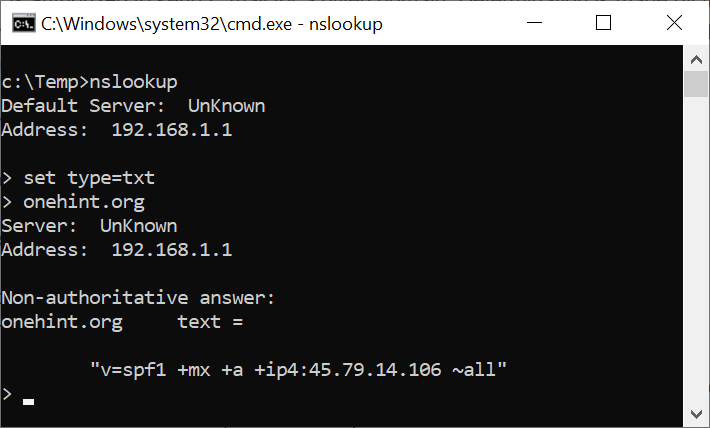
Using Windows:
If the owner of the domain configured an SPF record, it will start with "v=spf"
On Linux, type "nslookup -type=txt myNewDomain.com" at the command prompt.
Quick SPF Example
An SPF result in the header might look like this:
"Received-SPF: Pass (protection.outlook.com: domain of amazonses.com designates 54.240.48.34 as permitted sender) receiver=protection.outlook.com; client-ip=54.240.48.34; helo=a48-34.smtp-out.amazonses.com; pr=C"
"pr=C" refers to the certainty level of the security check by Microsoft (a "maybe" "pr=M" or a "certainty", if you will, according to our research)
"helo=" refers to the way the sending mail server 'introduced' itself or asserted its identity when making a connection to the receiving server. Often, this may appear as "ehlo=", which comically, represents a historical improvement over the "helo=" command from the earlier days of the Internet.
Why was "amazonses.com" looked up in the DNS in this example for information on which IPs are authorized? It's due to the message envelope (RFC 5321) received at message transmission time stating that the message is sent from "amazonses.com". The envelope is discarded after message delivery but some of its attributes are recorded and added to the message header. Specifically, the "smtp.mailfrom" value is added to message header, which serves as a record of the envelope "from" value even though the envelope has been discarded upon message delivery. 
Example: Looking at an email header, I see that the "sender IP" is 209.85.166.67". Which server name does "209.85.166.67" represent?
Step 1) At a command prompt, type "nslookup 209.85.166.67". 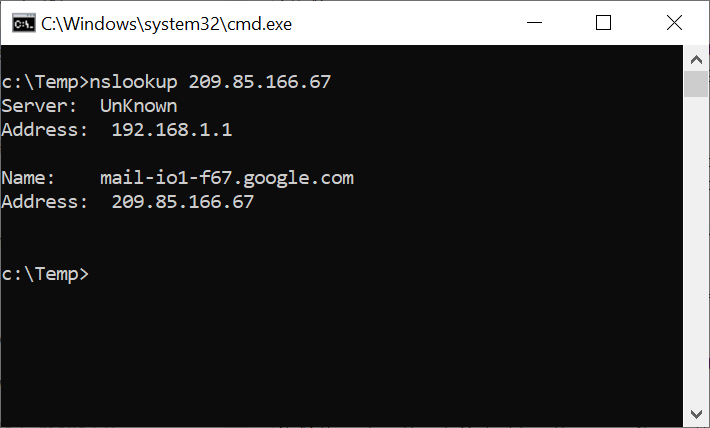 We see that the answer provided from the DNS is "mail-io1-f67.google.com", i.e. possibly one of Google's mail servers. Does this agree with what the sending mail server represented? Check the email header for the "helo" or "ehlo" value. This is how the sending server introduced itself when sending the message. e.g. "helo=mail-io1-f67.google.com". In our case, it matches what the DNS knows about "209.85.166.67".
To confirm and to get more info, we run a "WhoIs" query against the sender IP and obtain the official registration information ("whois 209.85.166.67"). For this, we may need the WhoIs utility by Sysinternals, now Microsoft. WhoIs command line tool is also packaged with MobaXTerm, an excellent remote terminal utility. We list all the best (our favorite) tools here for your convenience.
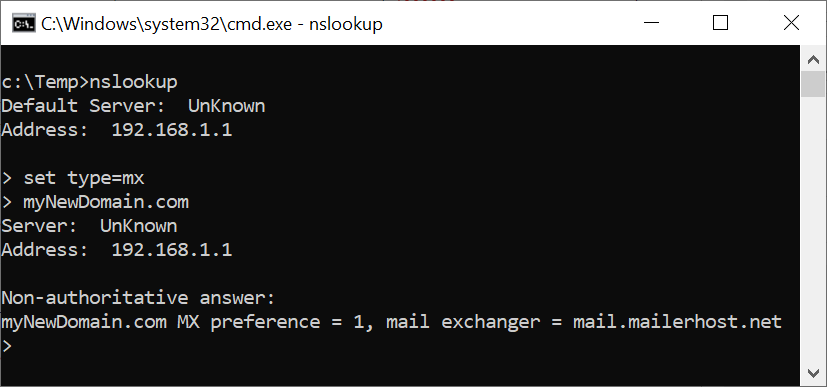
Using Windows:
The MX record states which host is designated by the domain owner to accept mail for the domain. By looking up the MX record, you know immediately which host can be directly contacted for submitting an email message addressed to a recipient at a given domain.
On Linux, type "nslookup -type=mx myNewDomain.com" at the command prompt.
Each one does a single job properly, in the same plain language, with no account anywhere.
Send a file from the browser, encrypted before it is uploaded, or use the Windows application for larger files and whole folders.
Visit filesender.io →Send a private message as a link that can be opened once and then disappears. No account and no phone number.
Visit textme.im →A one-time encrypted conversation that opens from a link. No account, no phone number and no history kept.
Visit protected.chat →Reach your own PC from anywhere over a direct, encrypted channel between the two machines, using credentials of your own choosing, with no provider or service in the middle.
Visit mypc.direct →Hand a whole gallery of photos and videos to family directly from your computer, using one-time codes that expire on their own and can be revoked at any moment.
Visit sending.pics →Reads the drive’s own file table instead of walking folders, so the whole disk appears quickly, sorted by size. Delete, move and rename from the same window, with a running total of the space reclaimed.
Visit claimdisk.com →Shows the devices on your network in about thirty seconds, explains in plain English what is wrong, and fixes it in one click — with a link straight to your own router’s security advisories and firmware.
Visit lanfixer.com →Draws the connections your PC makes on a map of the world, shows which program made it, and blocks any address, region or whole country that has no business being there.
Visit mapblocker.com →Free for personal use, all of them. Business, government and non-profit use of the Windows applications begins with a free two-week trial.
